PCAN-View
Software Installation
PCAN-View software is included with the driver for basic CAN device operations, no separate download required.
You can also download the PCAN-View Chinese version from: https://bj4633.apps.aliyunfile.com/disk/s/cEPHJHd3YyS?domainId=bj4633
Opening a Channel
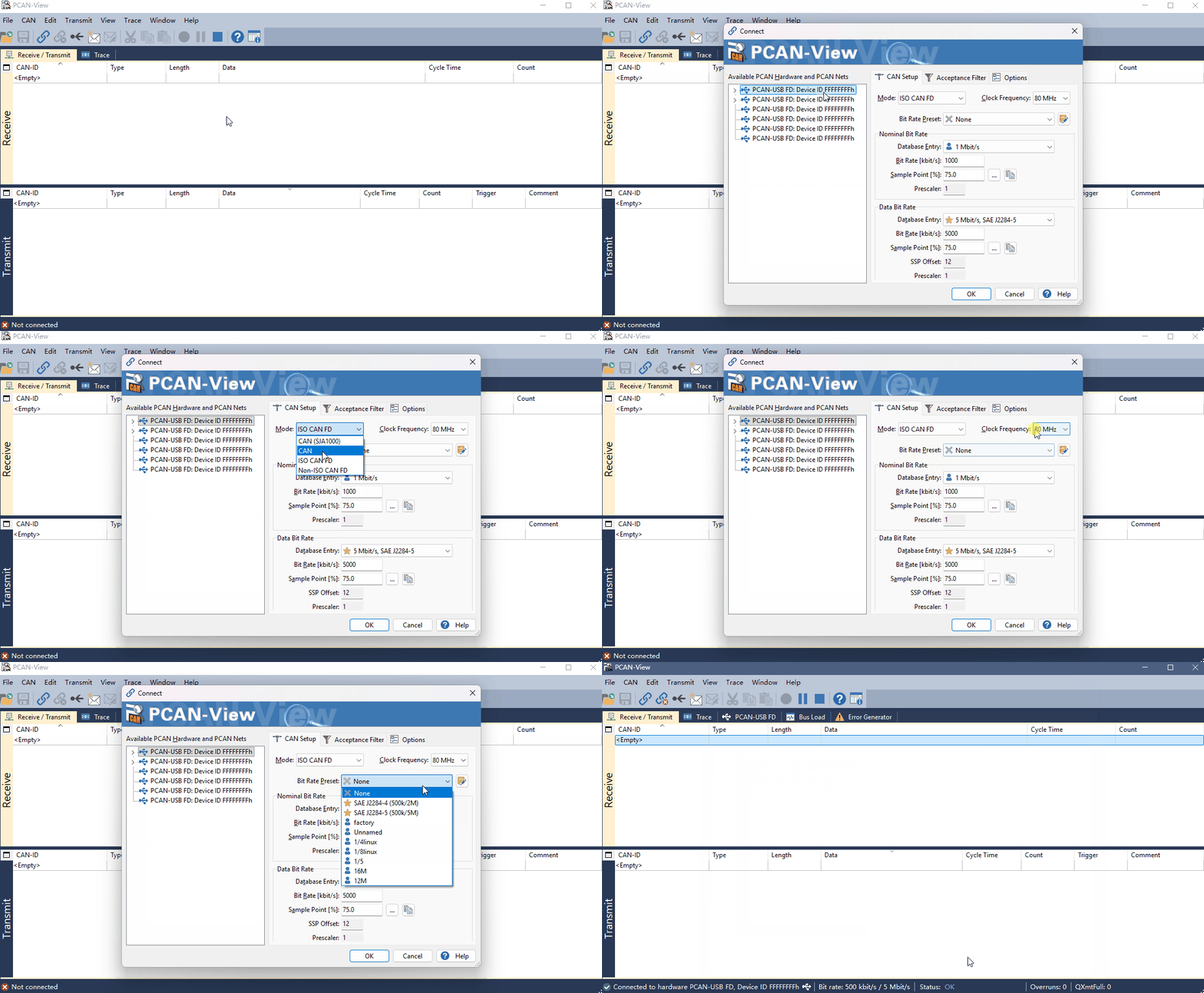
- Open PCAN-View from the Windows Start menu.
- Select the corresponding device interface from the list, configure the mode and bit rate, and click OK to enable the channel.
To connect multiple devices, you can open multiple software instances.
Receiving Messages
Received messages will be displayed in the Receive message list and Trace window.
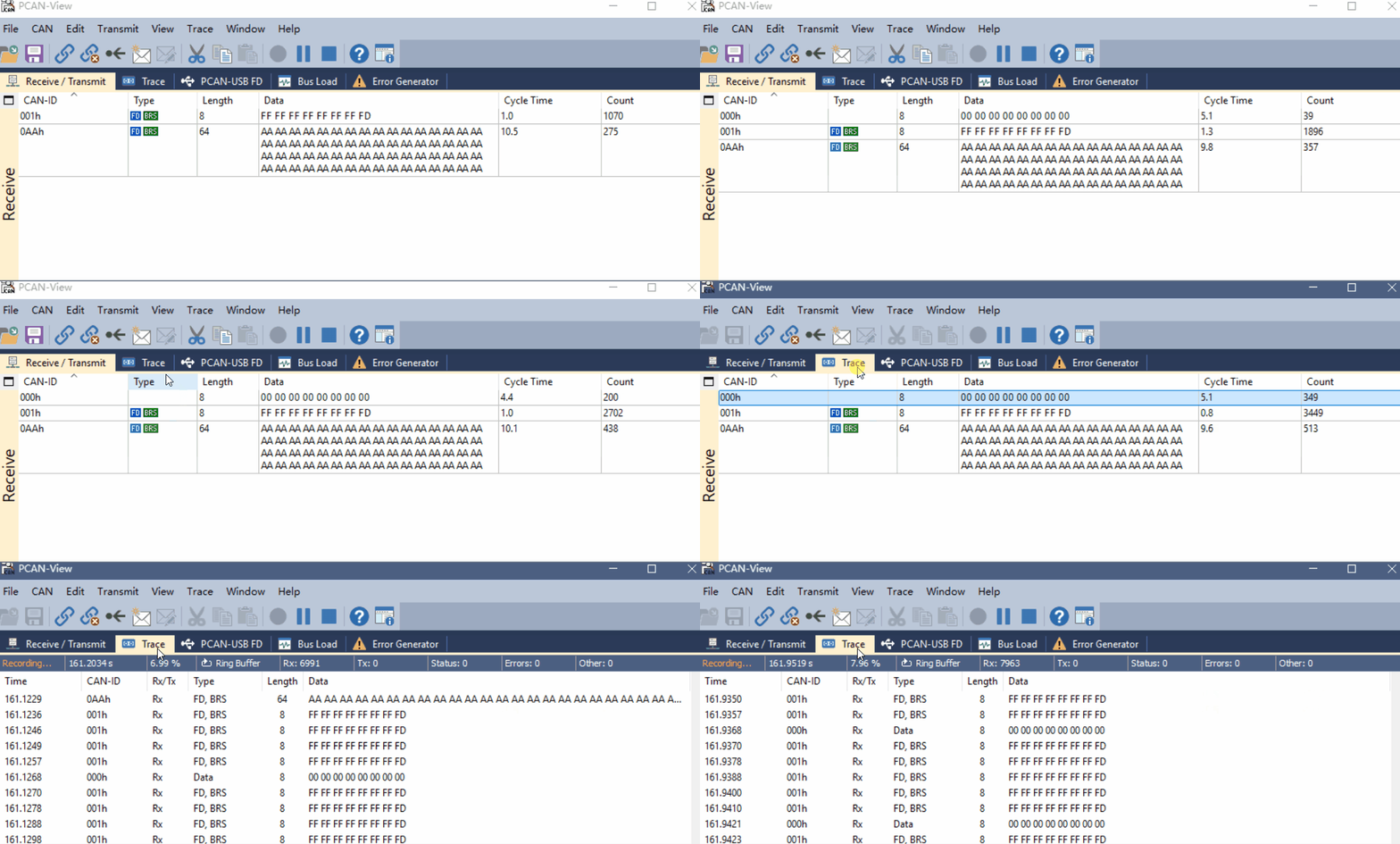
The Type column displays the message type, including:
- "FD" indicates the frame is in CAN FD format
- "BRS" indicates the frame has enabled data phase bit rate switching
- "ESI" indicates the frame's error status indicator is high (indicating the transmitting node is in Error Passive state)
- "RTR" indicates the frame is a remote frame.
When using Trace to record messages, you can select the message types to capture based on your recording requirements.
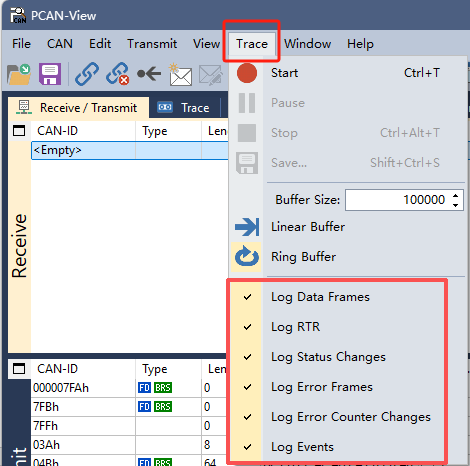
- Log Data Frames - Record data frames
- Log RTR - Record remote transmission request frames
- Log Status Changes - Record status changes
- Log Error Frames - Record error frames
- Log Error Counter Changes - Record error counter changes
- Log Events - Record events
Control the length and mode of log recording.

You can set a maximum of 1 million records. There are two recording modes:
- Linear recording: Stops recording when the buffer is full.
- Circular recording: When the buffer is full, new logs overwrite old logs.
Saving Messages
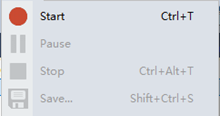
- Click Start to begin capturing
- You can pause and resume during the process
- Click "Stop" to stop recording, then click "Save" to save
The saved file can be opened with Notepad or Excel.
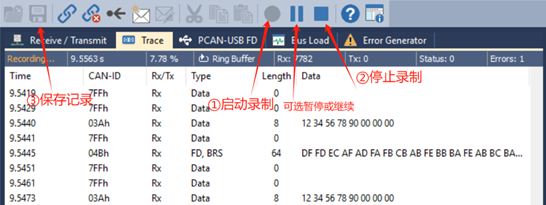
The recorded log results are shown below:
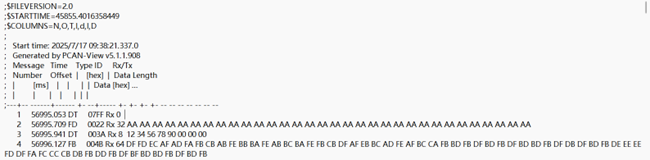
The log content includes: log sequence number, transmission time (ms), frame type, ID, RX/TX, data length, and data content.
Transmitting Messages
Select the Transmit menu and click New Message.
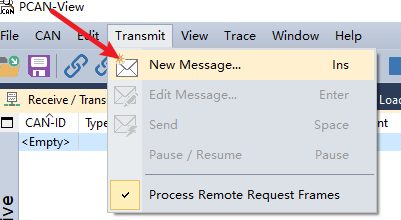
Select the message type according to your needs, fill in the message content, and click OK.
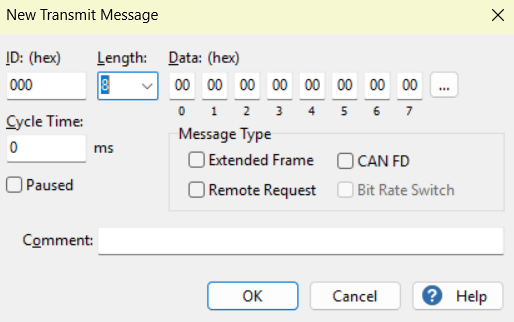
- Enter the ID, data length, and CAN message data.
- To send in CAN FD format, check the "CAN FD" option; the data length can be extended up to 64 bytes.
- After checking "CAN FD", you can also check "Bit Rate Switch" to enable high-speed bit rate switching in the data phase.
- Set the "Cycle Time" field to a value greater than 0 to enable automatic periodic transmission by checking the box in the transmit page; a value of 0 requires manual triggering.
- Both automatic and manual transmission can be triggered by pressing the spacebar on the selected message
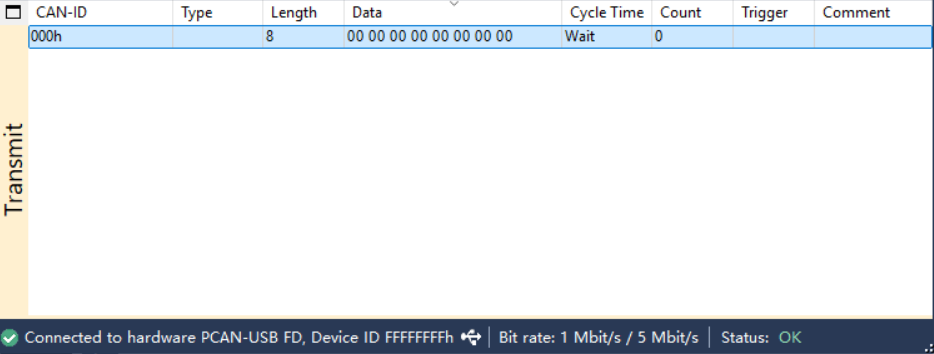
or via the menu command Transmit > Send. - Click OK to confirm the entry; the created transmit message will appear in the Transmit tab.
The created transmit message will appear in the Transmit tab. Use the spacebar or enable auto-transmit to send the message.
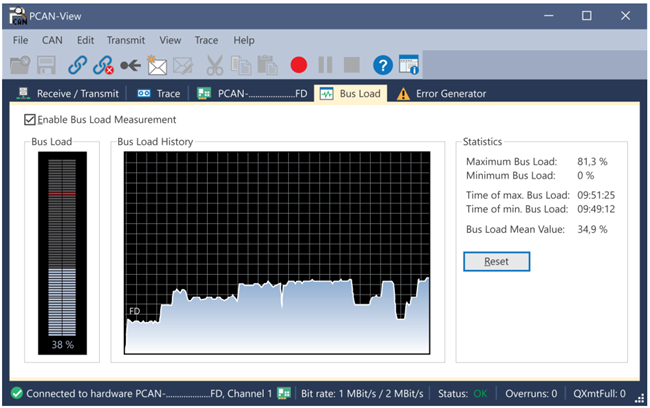
Bus Load
The Bus Load tab displays the current bus load and statistical information.