Vector Virtual Bridging Tool
1. Product Overview
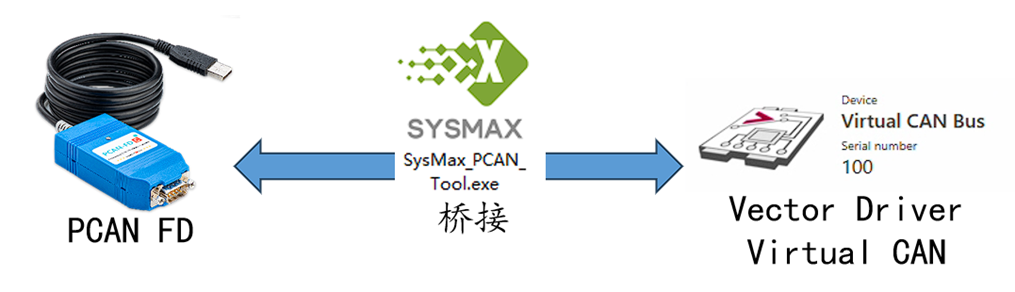
SysMax Vector Bridge Tool is a high-performance middleware software. It establishes high-speed mapping between Virtual CAN Channels in the Vector庐 driver and physical CAN/FD hardware, achieving a tool software alternative to Vector CAN/FD devices at extremely low cost.
1.1 Core Objective
Enable PCAN hardware to run CANoe/CANape.
1.2 Application Advantages
- Does not disrupt Vector's native driver environment
- Supports concurrent multi-application access
- Supports CAPL scripts
Vector bridging tool download link: https://bj4633.apps.aliyunfile.com/disk/s/mWTzV5jMHzs?domainId=bj4633
2. Features and Capabilities
2.1 Compatibility Features
This software supports integration with the full range of Vector (Germany) software and offers the following features:
- This solution does not disrupt Vector drivers and software, suitable for commercial use
- Excellent compatibility, no specific Vector driver version required
- Supports simultaneous use with Vector hardware
- Supports high-speed CAN and CAN FD functionality
- Supports arbitrary bit rate and sample point adjustment: 25 Kbit/s ~ 12 Mbit/s
- Time stamp resolution approximately 1 渭s
- Supports bridging multiple devices with multiple channels simultaneously
- Supports all features when used with CANoe, including CAPL programming
- Supports multiple applications opening the same device simultaneously
- Supports PCAN software and Vector software opening the same device simultaneously
- Supports software (any software that can select Virtual CAN channel is supported):
- CANoe
- CANape
- CAPL
- API and secondary development software based on Vector CAN driver
- TSmaster
- BusMaster
3. Hardware Support and Limitations (Important)
This solution has now been opened for third-party device use, meaning non-SysMax PCAN-FD devices can use this solution to connect to Vector drivers, including German PEAK's PCAN-USB FD or similar products. We welcome industry peers/competitors to test and use this solution. However, please note:
| Hardware Category | Certification Status | Supported Protocols | Notes |
|---|---|---|---|
| SysMax PCAN-FD (after August 2023) | 鉁?Certified | CAN 2.0 & CAN FD | Full feature support |
| SysMax older batches / third-party PCAN-FD | 鈿狅笍 Not Certified | CAN 2.0 only | Cannot start bridging in FD mode |
| German original PEAK PCAN-USB FD | 鈿狅笍 Not Certified | CAN 2.0 only | Cannot start bridging in FD mode |
鈿狅笍 Important Notes:
- SysMax PCAN-FD series products manufactured after August 2023 can pass software device certification and support full features of this solution (CAN 2.0B and CAN FD).
- Other devices that fail certification only support CAN 2.0 functionality of this solution and do not support starting bridging in CAN FD mode.
- When using devices that failed certification, the corresponding virtual channel can only be configured as CAN mode in Vector driver or software. After configuring as CAN FD mode, the Vector service cannot be started in SysMax_VectorTool.
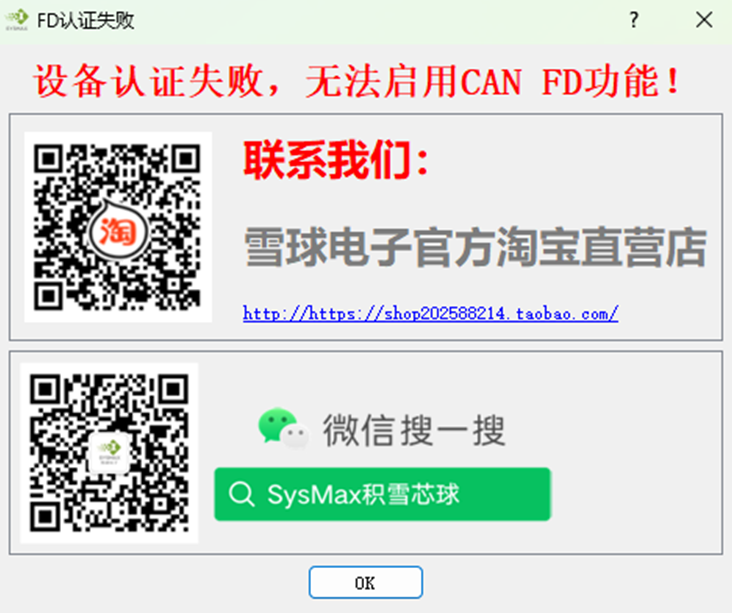
- When using third-party or unsupported older batch devices, the following popup will appear after starting the Vector service and bridging will close:
4. Operation Guide and Best Practices
4.1 Quick Setup
4.1.1 Environment Preparation
- Install PCAN driver and Vector Driver Setup (ensure Virtual CAN channels are enabled)
- Channel allocation: In Vector Hardware Config tool, confirm that sufficient Virtual CAN Channels are enabled

4.1.2 Bridge Configuration
- Open SysMax_VectorTool
- Map the physical channel (e.g., PCAN-USB FD Ch1) to the specified virtual channel (e.g., Vector Virtual CAN 1)
- Click "Start Bridging"
4.1.3 Service Startup
Click the "Start Bridging" button and confirm that status indicators are normal.
4.2 Notes
4.2.1 Background Operation
The bridging tool must remain running (can be minimized to tray). Closing the tool will cause immediate communication interruption.
4.2.2 License Information
This tool only provides communication link bridging and does not include authorization for Vector commercial software (CANoe, etc.). Users must resolve authorization (License) issues themselves.
Ways to obtain authorization:
- Search for the required software name on Xianyu or other methods
- Purchase genuine software licenses (LIC) or separate software keyman
- Contact us to obtain CANoe 13 evaluation version for short-term device testing
5. Use Cases
- Vector software Lic issues resolved, but still need cost-effective hardware alternatives
- Already have one Vector VN series device, but insufficient CAN/FD channel count
- Using free software developed based on Vector driver, but still need high-cost-performance hardware compatible with Vector
- Software developed based on Vector XL-Driver-Library
- Python CAN using Vector driver
- TSmaster
6. FAQ (Troubleshooting)
Q: The bridging tool reports "device certification failed"?
A:
- Please refer to the Hardware Support and Limitations section to confirm your hardware batch
- If FD functionality support is required, consider upgrading to the latest version of SysMax hardware
Q: Can it be used simultaneously with Vector hardware?
A:
- Yes. This solution supports simultaneous use with Vector hardware, enabling multi-channel expansion.
Q: Can the bridging tool start automatically on boot?
A:
- Yes. The software supports automatic startup on boot, automatically starting bridging functionality according to user configuration.